Install Need for Speed Underground, 2, Most Wanted and Carbon on Linux
Installing Need for Speed Underground, Underground 2, Most Wanted (2005) and Carbon on Linux is rather simple. On this page we will also learn how to setup the No-CD fix and widescreen patch for these games.
Setup Bottles
In case there is not Bottles environemtn to run these games with create a new one.
- Install Bottles from flathub
- Create a new environment by clicking on the Plus Icon in the top left

- Supply a Name
- Select Gaming as preset
- Hit Create

Install the games
If using disk images make sure Bottles has proper read access to /run/media/<USER_NAME>. You can use Flatseal or KDE's Build-in permission screen for this.

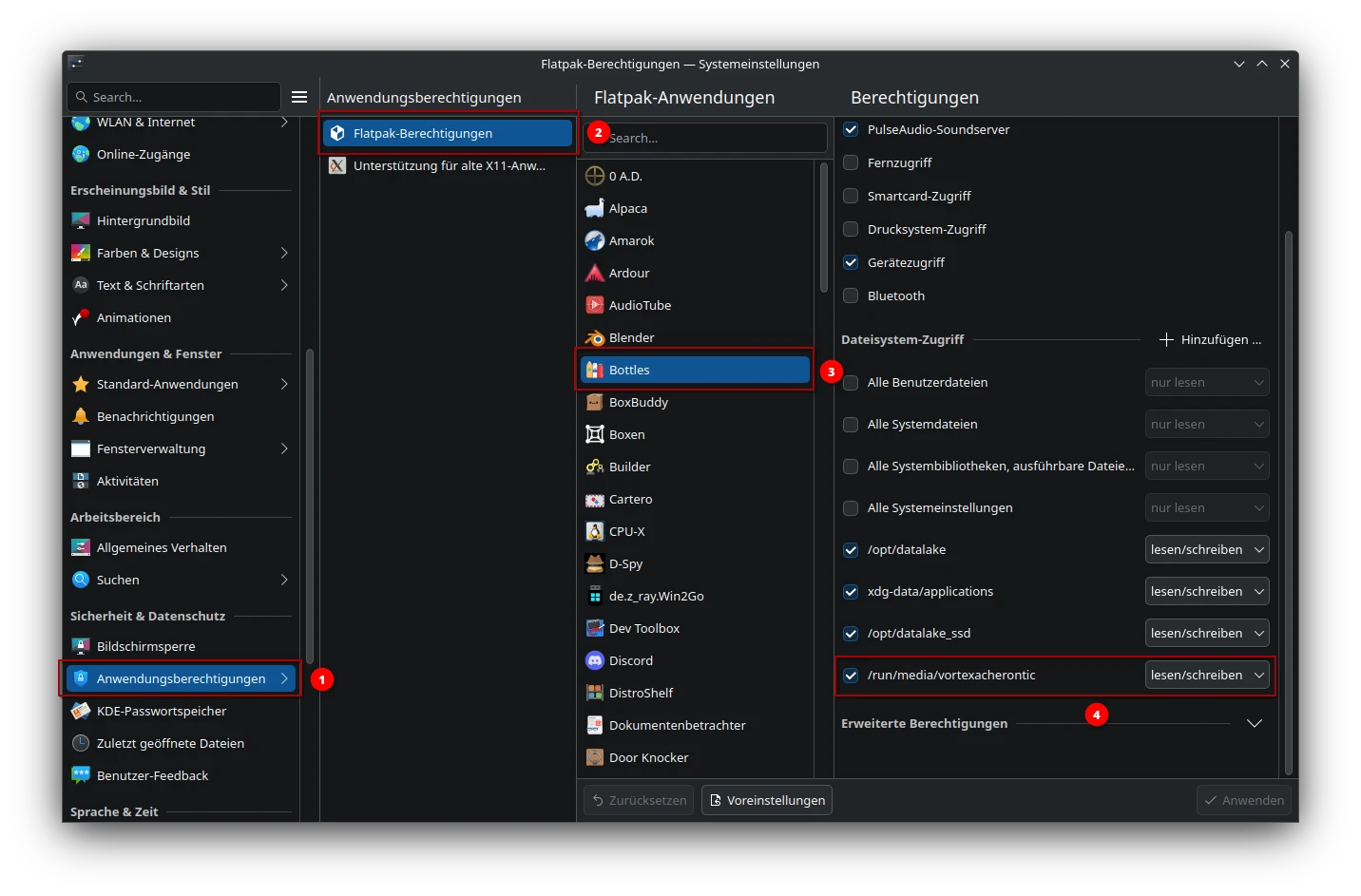
Restart Bottles after this change.
- Mount the disk images or insert the retail disks
- Open up the newly created Bottles environment
- Choose Run Executable...

- Navigate to the mounted disk or disk image
- Choose the game installer
- Click on Run
- Walk through the game installer
If you plan on using disk images the No-CD fix is mandatory . As the ISO format does not carry all aspects of the Secure Disk DRM. Continue with the No-.CD fix section. If using the retail disks all should work as expected already and you can play the game.
No-CD fix
- Download the No-CD fix from GameCopyWorld for your game:
- Need for Speed Underground
- Need for Speed Underground 2
- Need for Speed Most Wanted (2005)
- Need for Speed Carbon
- Extract the downloaded Archive
- Copy and paste all content into the install path of the required game
- Overwrite the main game executable if asked or create a backup of it
You should now be able to play the game without a disk or disk image required.
Widescreen fix
- Download the widescreen fix for your game from GitHub
- Need for Speed Underground
- Need for Speed Underground 2
- Need for Speed Most Wanted (2005)
- Need for Speed Carbon
- Extract the Archive
- Copy and paste all containing files and directory into the game install path
- Open Bottles Environment
- Choose Settings

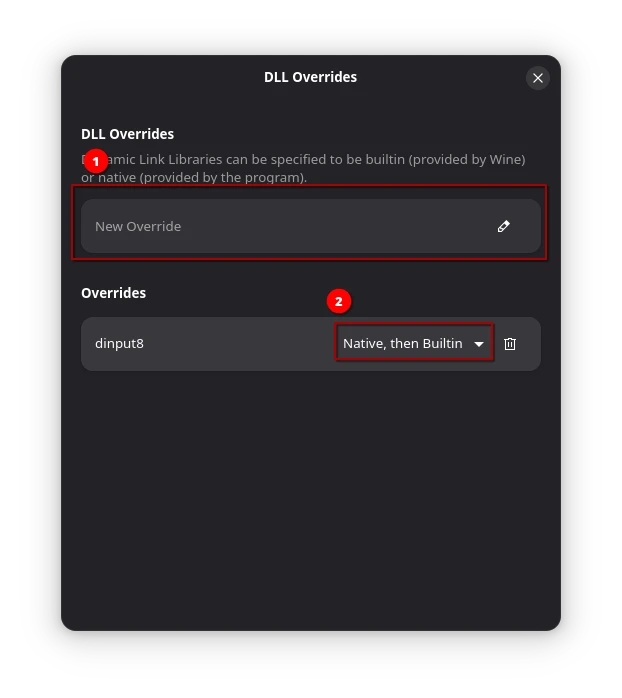
- Scroll down until you read DLL-Overrides

- Add a new entry: dinput8 and set it to native, then build-in
Troubleshooting
While most of the time these steps are the same for all 4 games there a few occasions where some of them require some special tweaks.
Need for Speed Underground 2
For Underground 2 we will require the No-CD and the widescreen fix in order to be able to play the game without any physical or virtual disk. With just the No-CD fix we would still require a mounted disk image to play. Therefore I recommend using both the No-CD and the widescreen fix for this game.
Need for Speed: Most Wanted
For Most Wanted we need to configure the widescreen fix as by default the game UI might be misplaced. Therefore if you want to play Most Wanted with the fix you have to open up the scripts directory we copied into the game install from the widescreen fix.
Then open the file NFSMostWanted.WidescreenFix.ini with any text editor you'd like.
Below [MAIN] change FixHUD = 1 to FixHUD = 0. This will keep the in-game user interface at the original 4 by 3 aspect ration and might stretch it. But at least it is not off screen and all elements can still be seen.