Waydroid on Kalpa Desktop and Aeon Desktop

While there is a guide online on how to install Waydroid on Tumbleweed it is unfortunately slightly out-dated and does not translate one by one to Aeon or Kalpa Desktop.
Install Longterm Kernel
Throughout our testings we've noticed some instability using the -default Kernel using the binder kernel module as installed via anbox-modules. This can be Waydroid simply crashing at random or even cause the entire desktop to freeze.
Therefore we recommend installing the -longterm kernel as described on our dedicated documentation page.
Configure Kernel
Afterwards we need to add an additional parameter to our kernel commandline. This can be done by editing:
sudo vim /etc/kernel/cmdline
Press i to enter Insert mode and add psi=1 at the very end of the cmd line.
It should look similar to this:
root=/dev/nvme0n1p2 [...] psi=1
Save the file by ESC :x
Then rebuild the initrd by running sudo transactional-update initrd
Install Waydroid
sudo transactional-update -c run zypper addrepo https://download.opensuse.org/repositories/home:jimed-rand:waydroid/openSUSE_Tumbleweed/home:jimed-rand:waydroid.repo
sudo transactional-update -c pkg in waydroid anbox-modules
Then reboot the machine and continue below.
SecureBoot
For SecureBoot enabled systems we also have to enroll the Machine Owner Key for the anbox-modules. As Kalpa has a root account it should prompt you right away with the MOK enroll screen. The default password on Kalpa is the one of the root account.
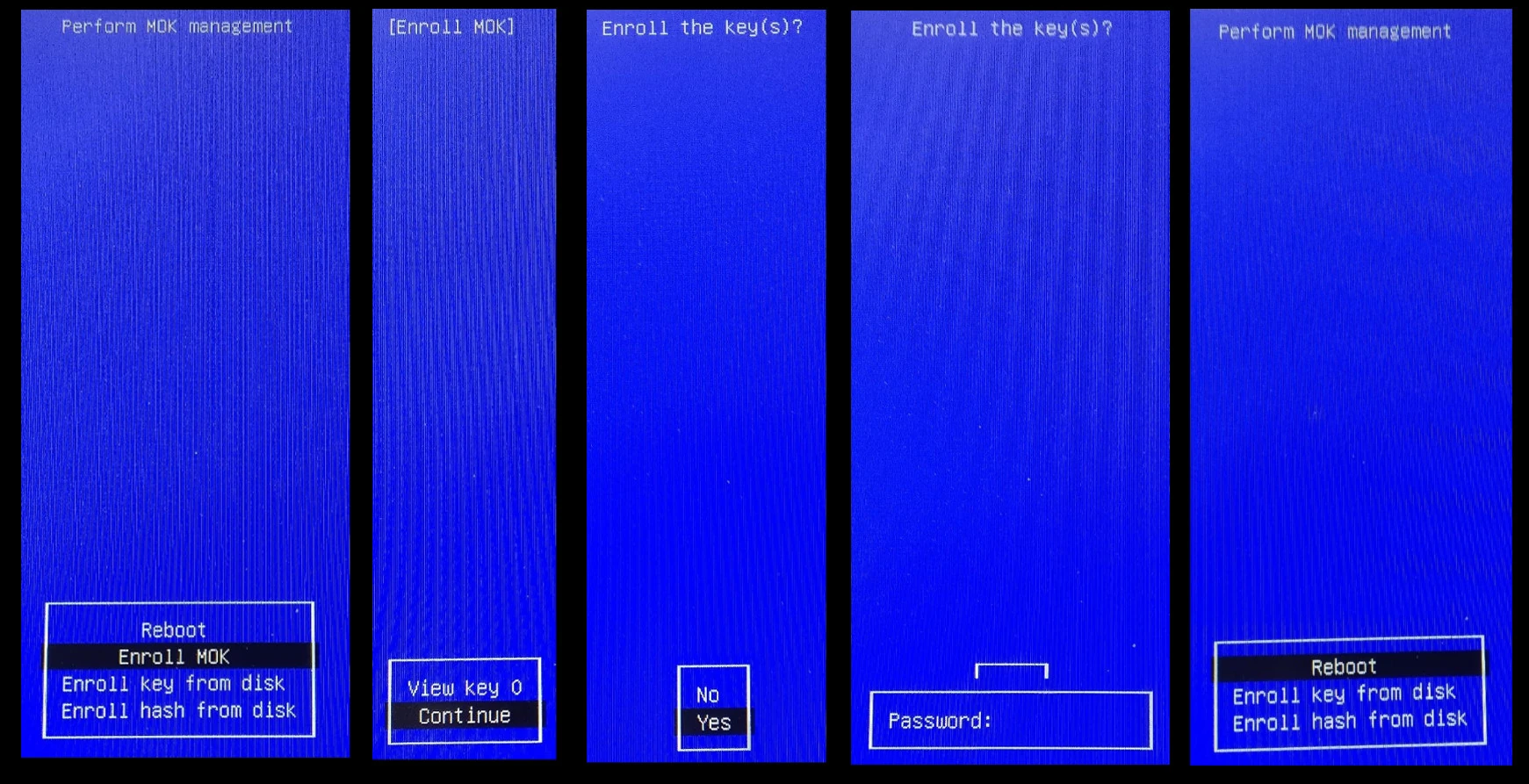
To enroll the MOK key do the following:
- Enroll MOK
- Continue
- Yes
- Enter root passwort (Kalpa) or the chosen password while using mokutils on Aeon
- Reboot
Setup Waydroid
First start the Waydroid container service:
sudo systemctl enable waydroid-container
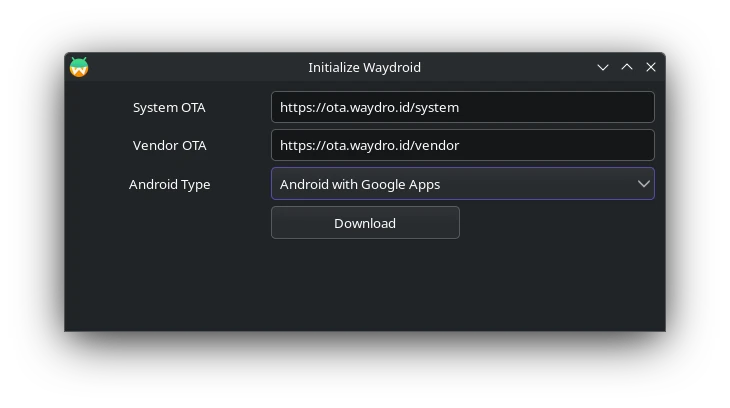
After opening Waydroid and downloading the Android image it will ask for two OTAs. Enter these:
System OTA: https://ota.waydro.id/system
Vendor OTA: https://ota.waydro.id/vendor
Register Device
If you've chosen the Android Image with Google Apps you also need to register your new "device". For this you'll need a google account.
While Waydroid is running open up a terminal and enter:
sudo waydroid shell -- sh -c "sqlite3 /data/data/*/*/gservices.db 'select * from main where name = \"android_id\";'"
This should return something similar to this: android_id|xxxxxxxxxxxxxxxxxxx. For the registration to work we only need the number after the pipe |.
Open Goggle's Device registration and login with the Google account you want this device to be connected with.
Enter the previously obtained device number and enter it into the textfield shown on the Device registration page. Confirm you're not a Robot and click on Register. Now we have to wait a few minutes up to several hours.
Afterwards you should be able to use Goggle Apps with Waydroid or better said with Lineage OS just fine.
Unroot Waydroid device
By default the Android Image running via Waydroid is a rooted device. THis means the ANdroid user has full system access. While some Apps, often times Streaming Apps, do refuse to work on rooted devices. In oder to use them we have to disable root access as follows:
Open the file: sudo vim /var/lib/waydroid/waydroid.cfg. Press I on your keyboard to enter Insert mode and add below [properties]:
# fix root liapp
ro.product.brand=google
ro.product.manufacturer=Google
ro.system.build.product=redfin
ro.product.name=redfin
ro.product.device=redfin
ro.product.model=Pixel 5
ro.system.build.flavor=redfin-user
ro.build.fingerprint=google/redfin/redfin:11/RQ3A.211001.001/eng.electr.20230318.111310:user/release-keys
ro.system.build.description=redfin-user 11 RQ3A.211001.001 eng.electr.20230318.111310 release-keys
ro.bootimage.build.fingerprint=google/redfin/redfin:11/RQ3A.211001.001/eng.electr.20230318.111310:user/release-keys
ro.build.display.id=google/redfin/redfin:11/RQ3A.211001.001/eng.electr.20230318.111310:user/release-keys
ro.build.tags=release-keys
ro.build.description=redfin-user 11 RQ3A.211001.001 eng.electr.20230318.111310 release-keys
ro.vendor.build.fingerprint=google/redfin/redfin:11/RQ3A.211001.001/eng.electr.20230318.111310:user/release-keys
ro.vendor.build.id=RQ3A.211001.001
ro.vendor.build.tags=release-keys
ro.vendor.build.type=user
ro.odm.build.tags=release-keys
Afterwards update the device by running: sudo waydroid upgrade --offline. The issue should now be fixed.
Source
Notes
If you're coming form the Tumbleweed Guide provided by Runa-Chin this guide differs in a few things:
- The repository was changed from where we get waydroid and anbox-modules
- Installing weston or cage is not explained as both Aeon and Kalpa are Wayland centric distributions and thus do not run via X11. Hence, we already run a Wayland compositor by default.
- We added a SecureBoot section which was missing in the original guide.
- Changing the Kernel commandline is done differently on Kalpa and Aeon as both use SystemD-Boot by default.
- Obviously we also changed every zypper command to transactional-update as zypper can not be used as it on Aeon and Kalpa
- Added Register Device section
- Added unroot section