Installing Kalpa Desktop

Prepare installer
- Download the openSUSE MicroOS ISO from here
- Burn the ISO onto a USB stick with at least 4 GB
- On Windows you may want to use Rufus for this
- On Linux you may want to use Impression
- Note: Some might prefer
Balena Etcher, but this tool is known to modify the installer image - Attention: Make sure you do not have any important files on that USB drive as all data will be erased
Install Kalpa
Once the installer has been copied onto a USB drive as explained above you now need to stick it into the target device where Kalpa should be installed. Shutdown the system if it is running and while booting it up press F1, F12, DEL, ESC to enter the UEFI Boot menu. Which button applies depends on the device and UEFI.
Start the installer
After the system has booted from the USB drive the openSUSE MicroOS boot menu should appear. Select Installation
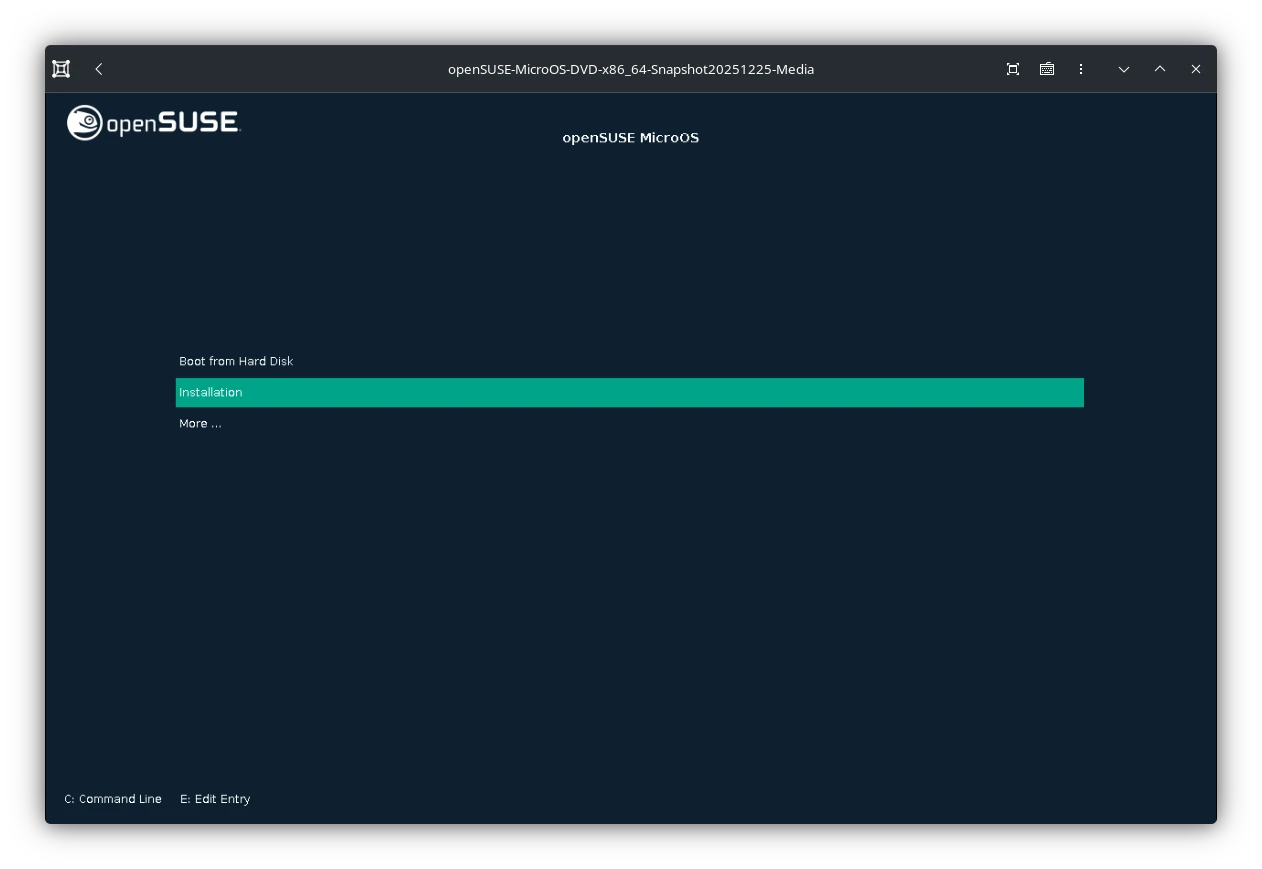
Afterwards wait for the actual installer to boot up. This may take a while.
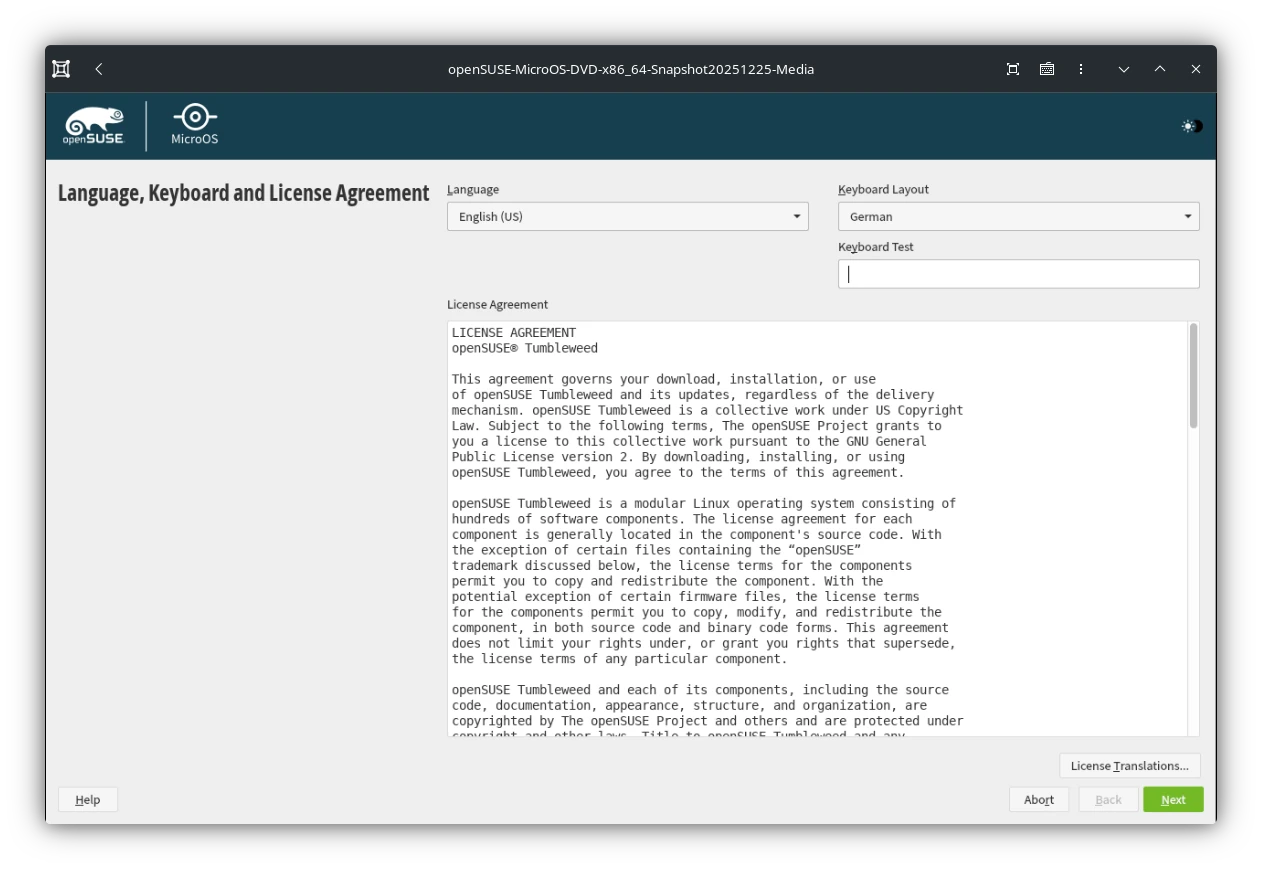
Language and Keyboard
As the first step, after the installer has been loaded, choose your preferred langauge and keyboard layout.
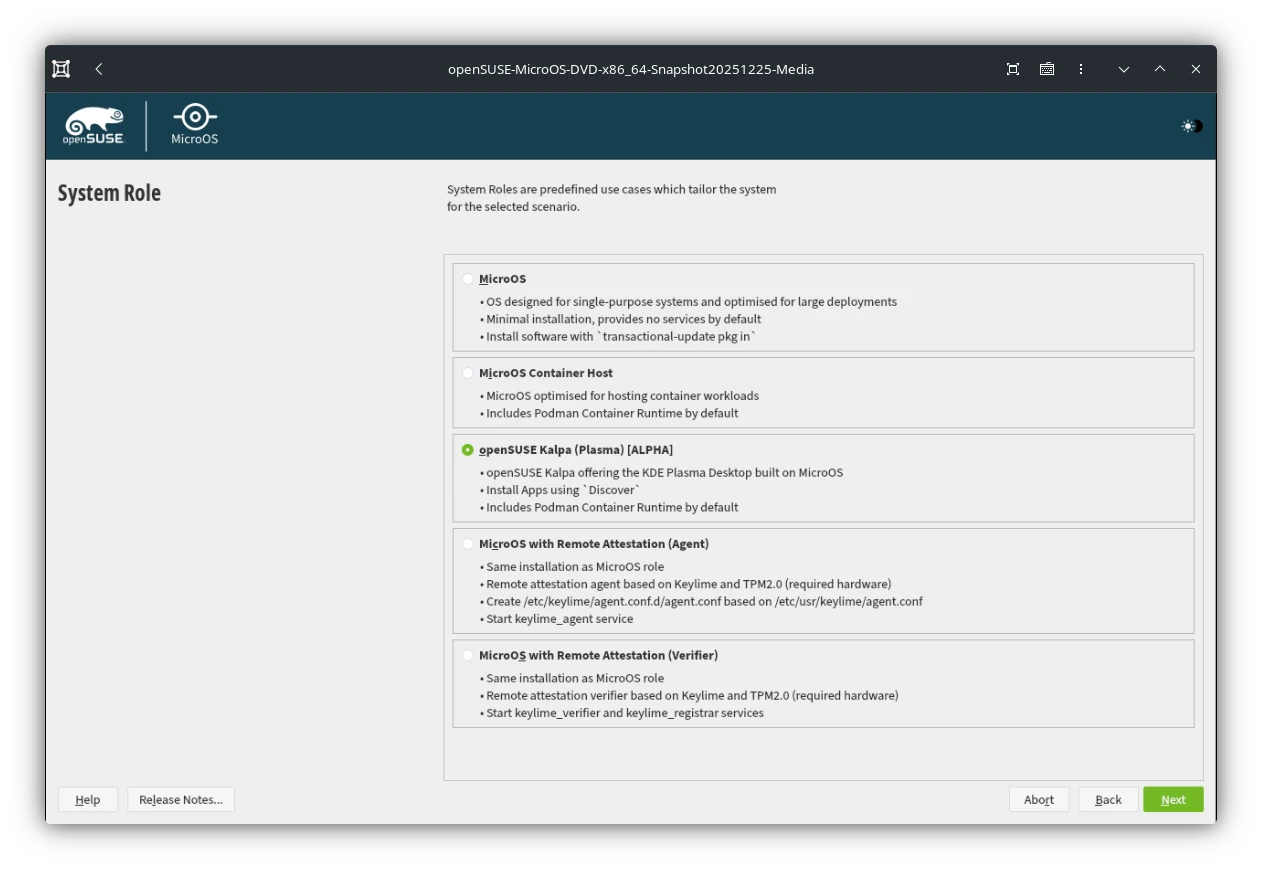
System Role
Afterwards the installer ask for the System Role. As Kalpa currently shared the same installer as the server orientated MicroOS there are several MicroOS roles. Choose openSUSE Kalpa (Plasma) [ALPHA]
NTP Configuration
You can leave this screen as it and just advance with Next.
Local User
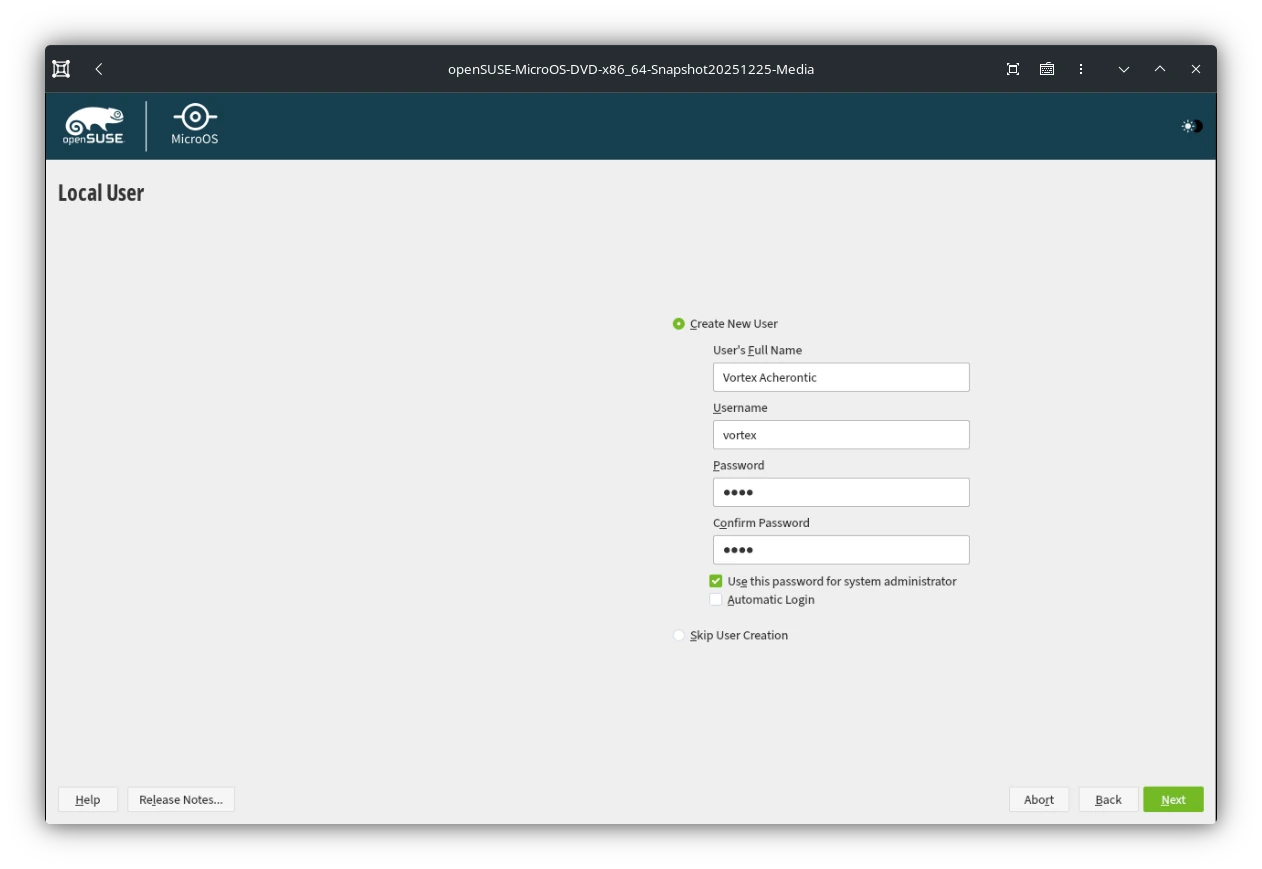
Now you can setup the default user for the new Kalpa system. It is recommended to setup at least one user here.
Choose as User's Full Name anything you'd like. Username will then be filled automatically.
Set any Password you'd like. Additionally you can Use this password for system administrator (root) if you do not plan on remembering two different passwords. Note: This will NOT make the default user root.
Installation Settings
Here we need to change a few things as Kalpa still shared the same installation media with MicroOS. While MicroOS is a server orientated operating system Kalpa is aimed at desktop users.
Attention: Kalpa is not meant to be dual booted with other operating system. Therefore this guide assumes Kalpa to be the only system on the target system.
Security
Click on the green text Security
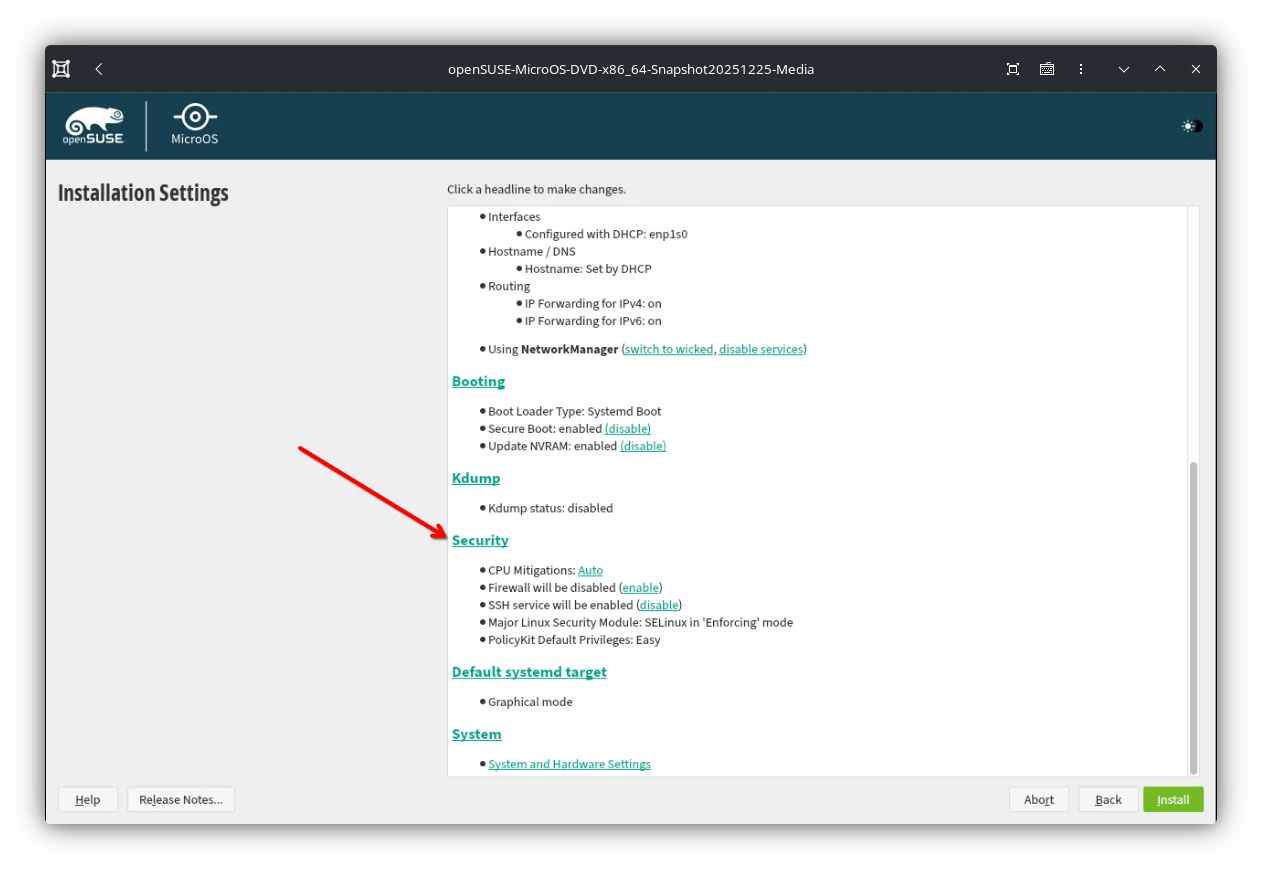
As first uncheck Enable SSH Service as we do not run a server which requires remote access.
Optionally you can also change SELinux Mode to Permissive or change Selected Module to None.
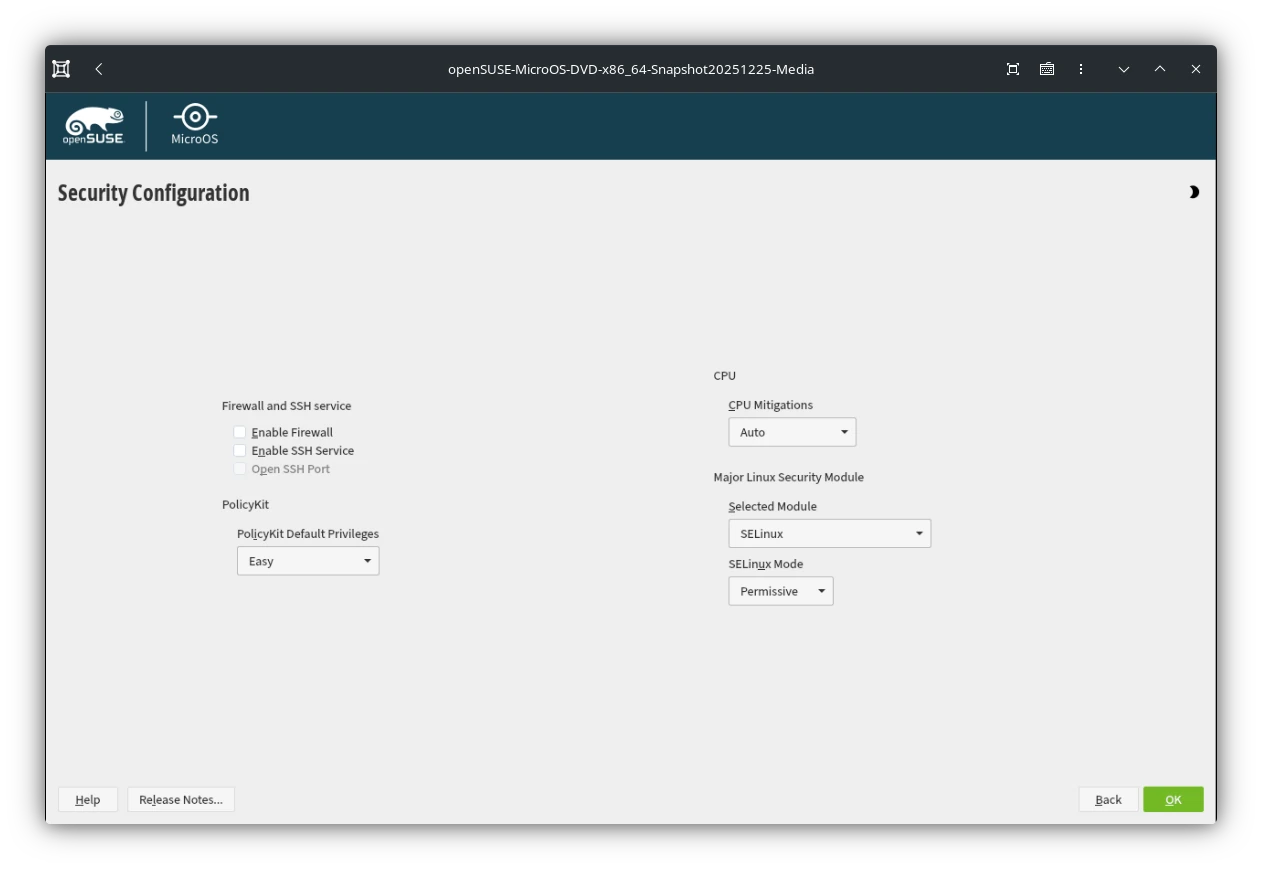
Attention: Changing the default SELinux mode or disabling it will weaken the over all system security. As we do not have any form of Anti-Virus or Firewall in Kalpa.
- Changing the SELinux Mode can be done to skip the later step Update SELinux Policies
- Disabling SELinux all together will prevent the system for occasionally Relabel the entire file system after certain updates. This, depending on the amount of data you have, can take a few seconds up to several minutes.
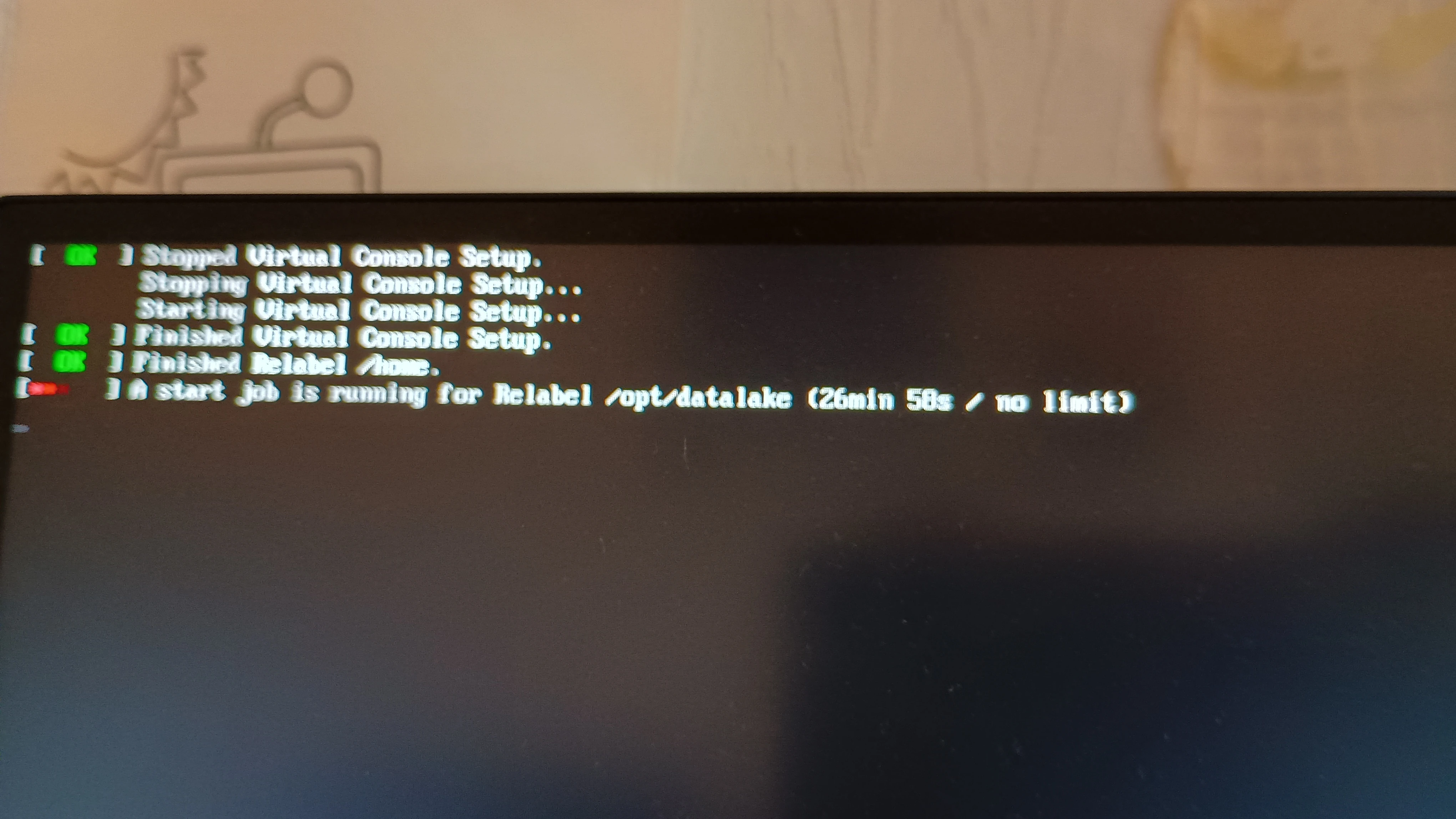
(NOTE: This is an extreme example with over 5TiB of data across multiple HDDs, relabeling on SSDs or with less data is significantly faster)
Hit OK and continue with Install
System Setup post install
After the installation has been completed Kalpa will boot right into the text interface (also called tty). This is not due to a mistake during install but because, as previously mentioned, Kalpa shares the install media with the server orientated MicroOS. This is why we need to change SELinux and also will not have a graphical user interface enabled by default.
Login as root using the previously set passwort for the system administrator. While typing in the passwort there is not visual indicator that you've typed a character. Be assured it does.
Enable Graphical interface
Now that we have logged in as root enable the sddm.service as follows:
systemctl enable --now --force sddm.service and press enter.
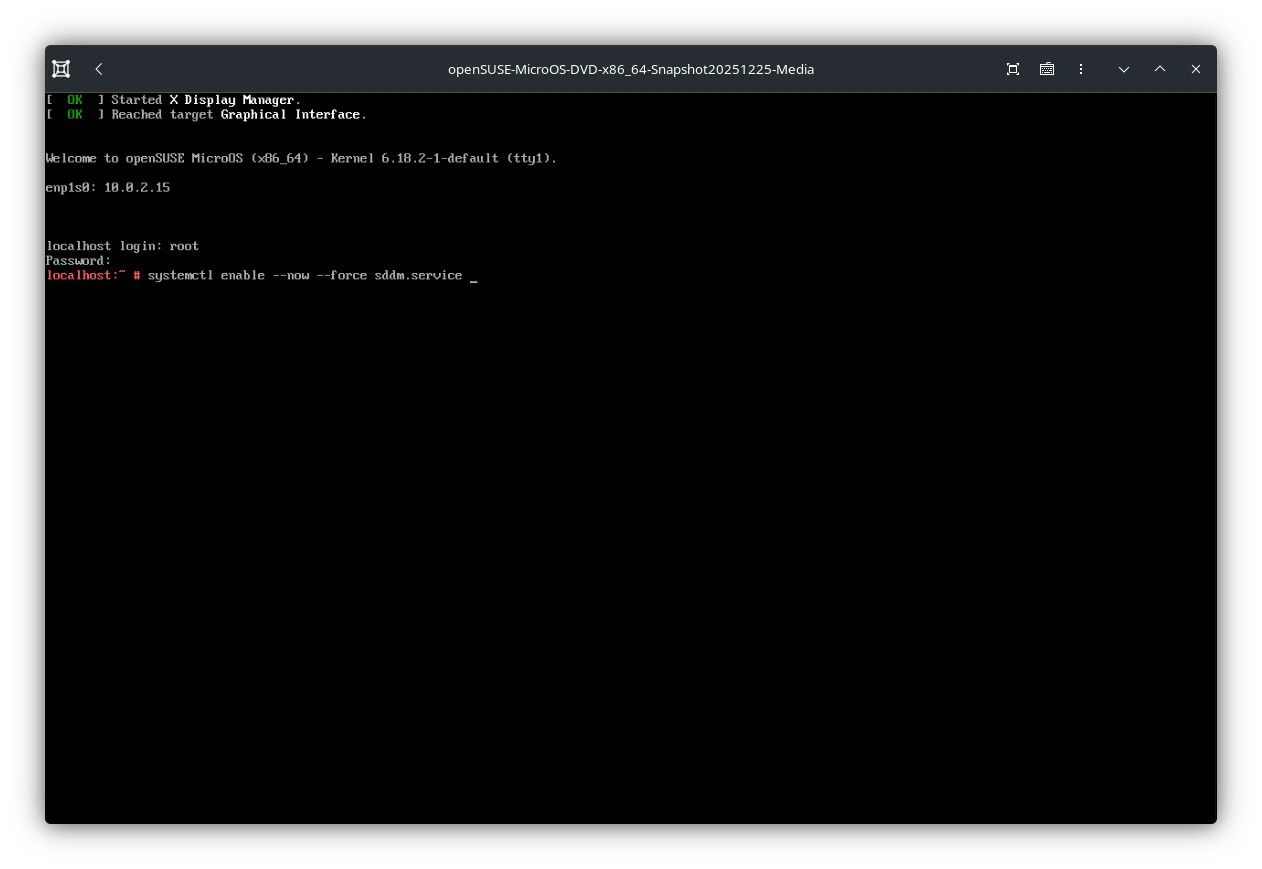
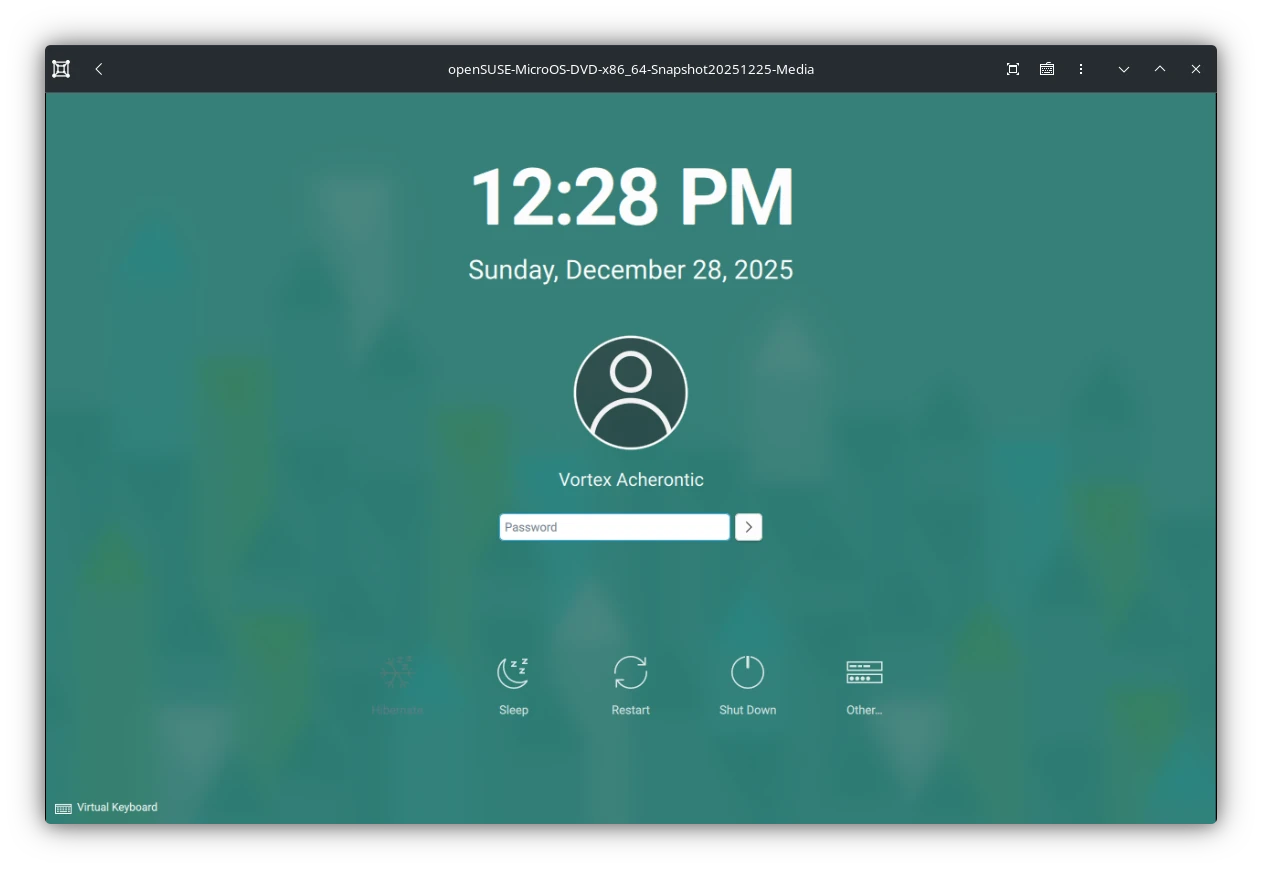
The KDE login screen should appear right away. This step has only to be performed once. Now login with your default user.
KWallet
If connecting to a WiFi network KDE will show the initial KWallet setup screen. Choose Classic, Blowfish encrypted file type in an easy to remember passwort, or none.
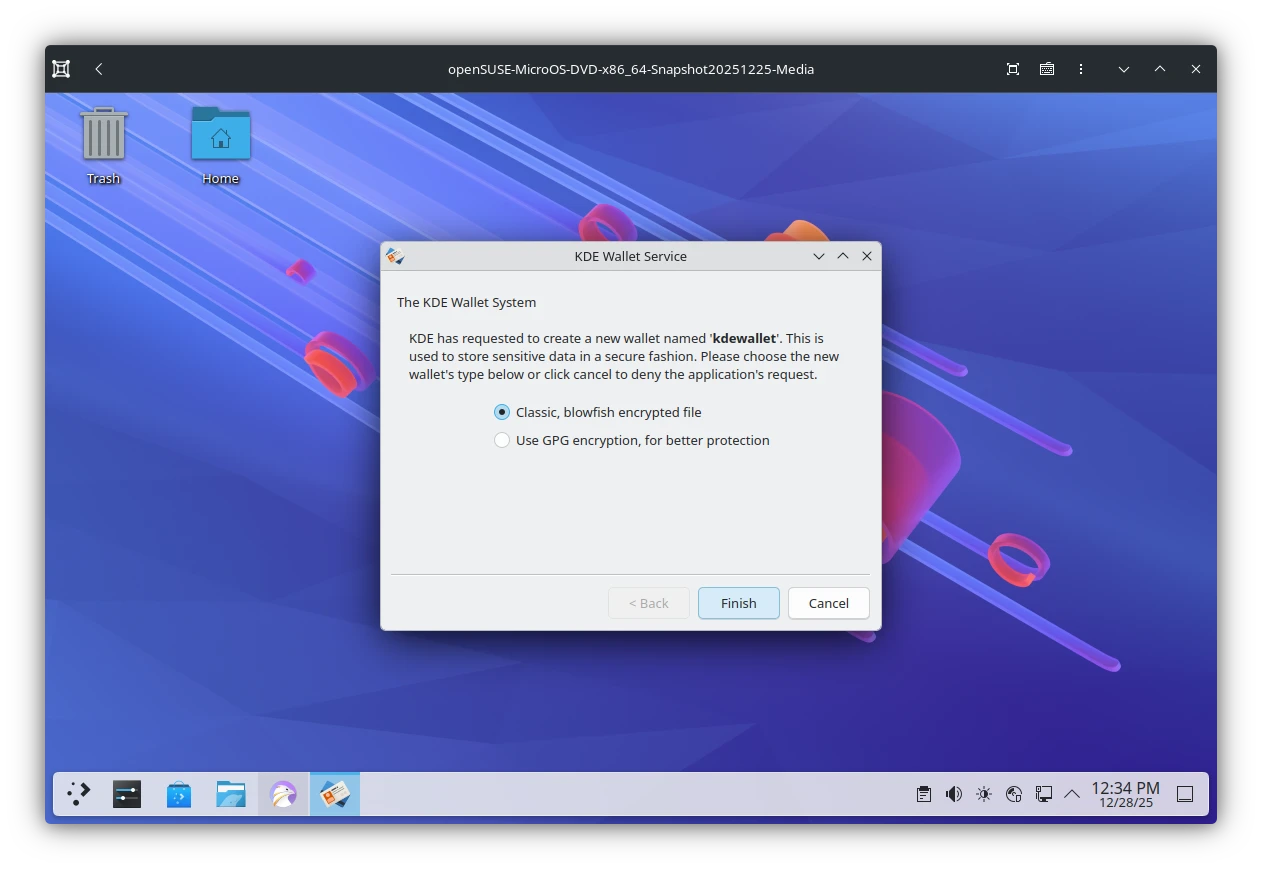
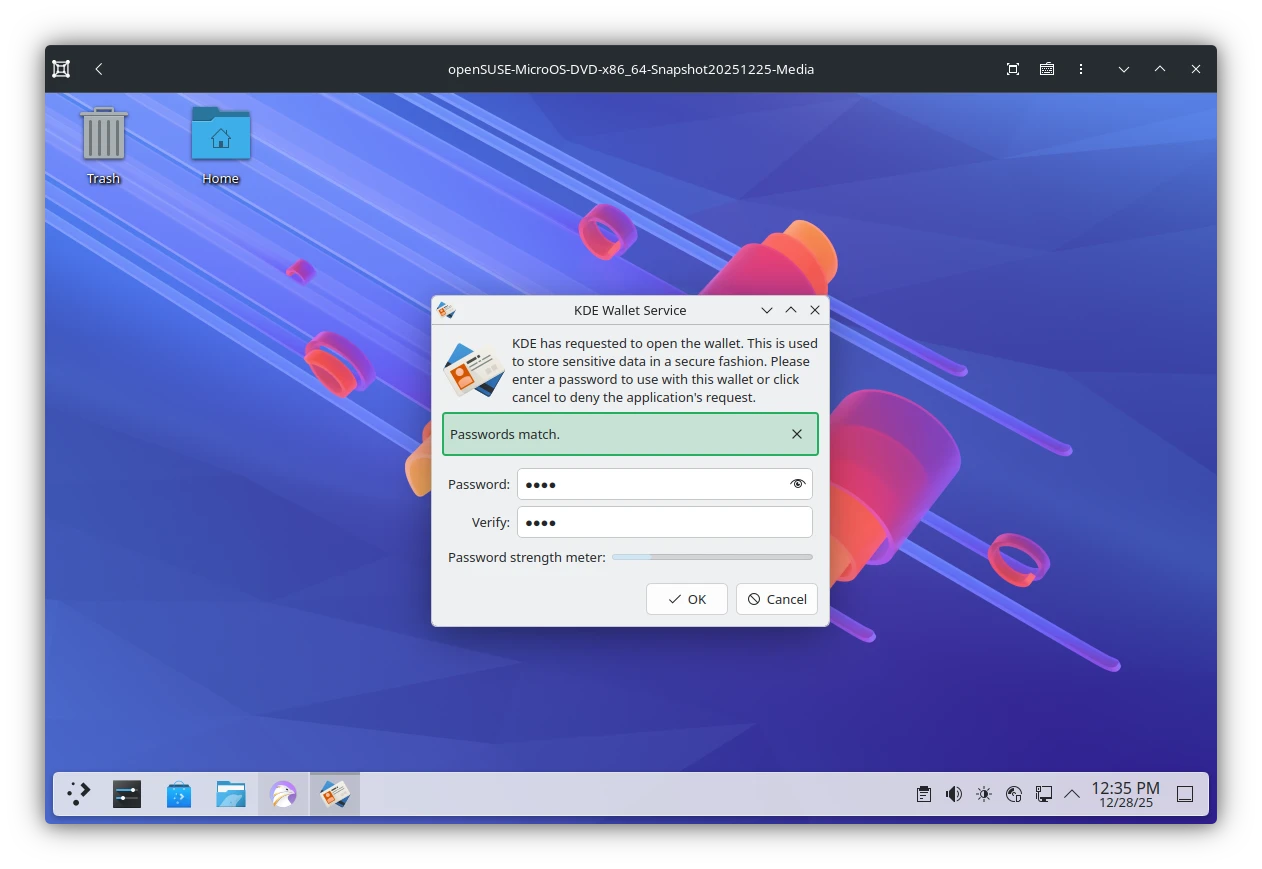
Hit OK.
Attention: Currently there is a Bug in KWallet which causes it to fail to unlock after the first setup. If your system can not connect to WiFi and claims the password is wrong. reboot the system and try again.
Update SELinux Policies
As Kalpa is not a server operating system the default SELinux configuration is rather strict. Unless you haven't change the SELinux mode to Permissive above or disable it entirely here are some essential tweaks required for a smooth desktop experience.
Open Konsole and enter:
sudo setsebool -P selinuxuser_execmod 1
sudo setsebool -P selinuxuser_execheap 1
sudo setsebool -P selinuxuser_execstack 1
This is required because applications such as Steam, Wine/Proton, native Linux Games and probably others do not work as expected causing all sorts of issues who's root cause is not very clear. With these 3 policies enabled there shouldn't be any additional SELinux headaches, despite relabeling.
Install Kalpa (for real now)
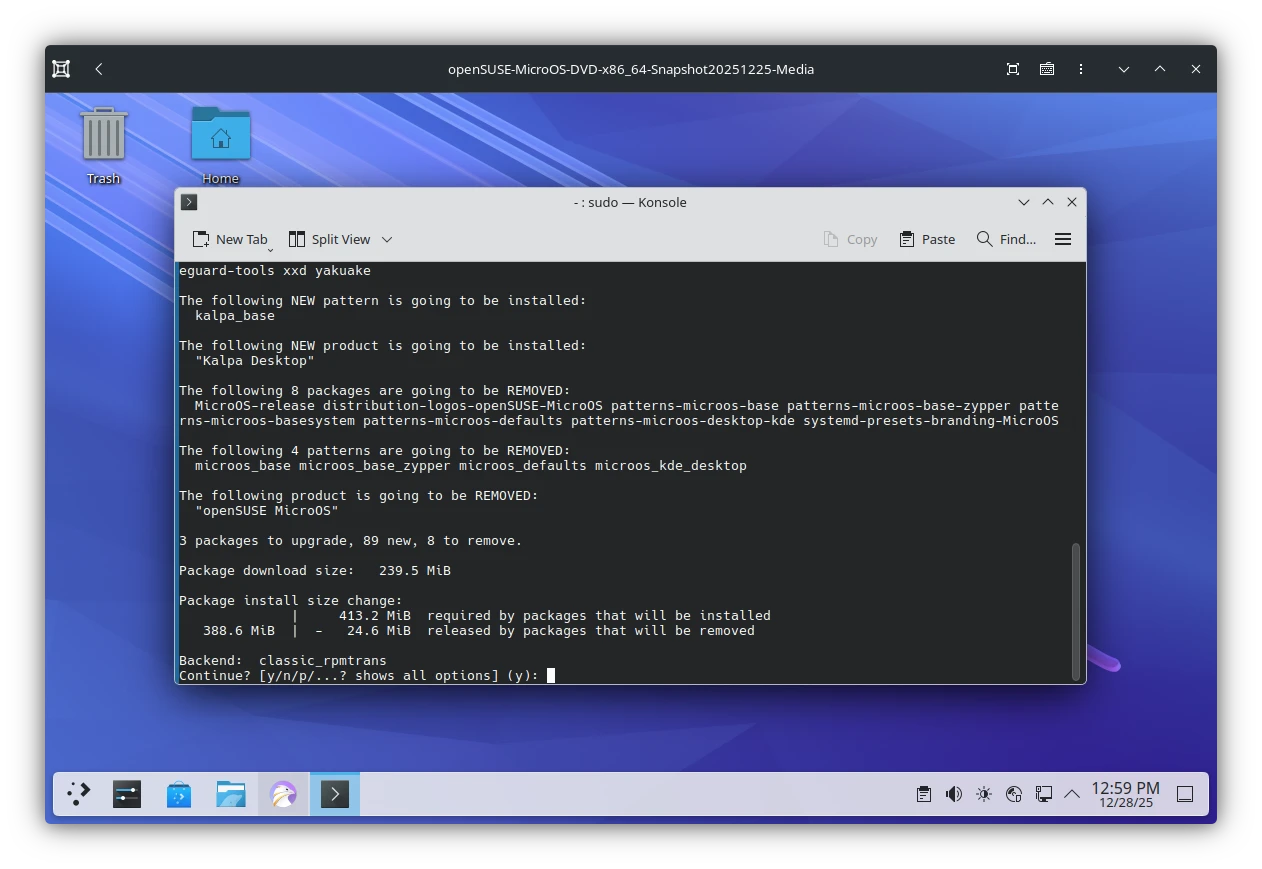
As we are currently running MicroOS with KDE Plasma Desktop we're still not running Kalpa Desktop. To change this open Konsole and enter:
sudo transactional-update -i pkg in --force-resolution patterns-kalpa-base
Press Enter and wait for the install to finish.
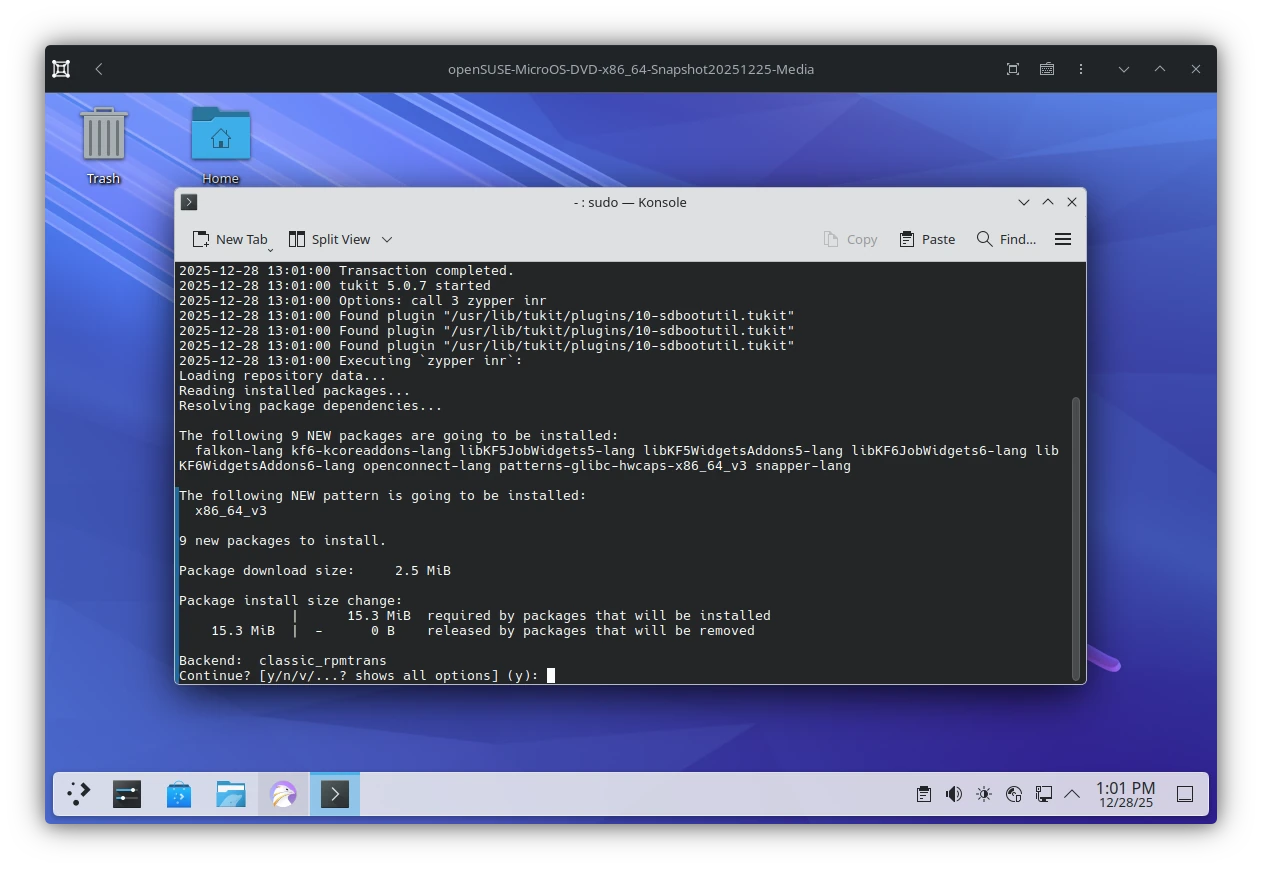
Install language packs
In case you're locale is not English (US) you may need to install additional langauge files. Despite choosing the language in the installer.
Open Konsole and enter:
sudo transactional-update -c run zypper inr
Press Enter.
Install nVidia drivers
For installing nvidia drivers reboot your system and continue with our dedicated guide which can be found here.
Or follow the official instruction as provided by Kalpa Desktop at: https://kalpadesktop.org/documentation/nvidia/.
Note: These guides are more or less identical as I wrote both of them.
Quality of Life Improvements
The following steps are not necessary to install Kalpa but are considers QoL tweaks. Restart your system before continuing below.
Silent Boot
If you are not a fan of text scrolling over your display while booting the system we can suppress this screen as follows:
Open Konsole and enter:
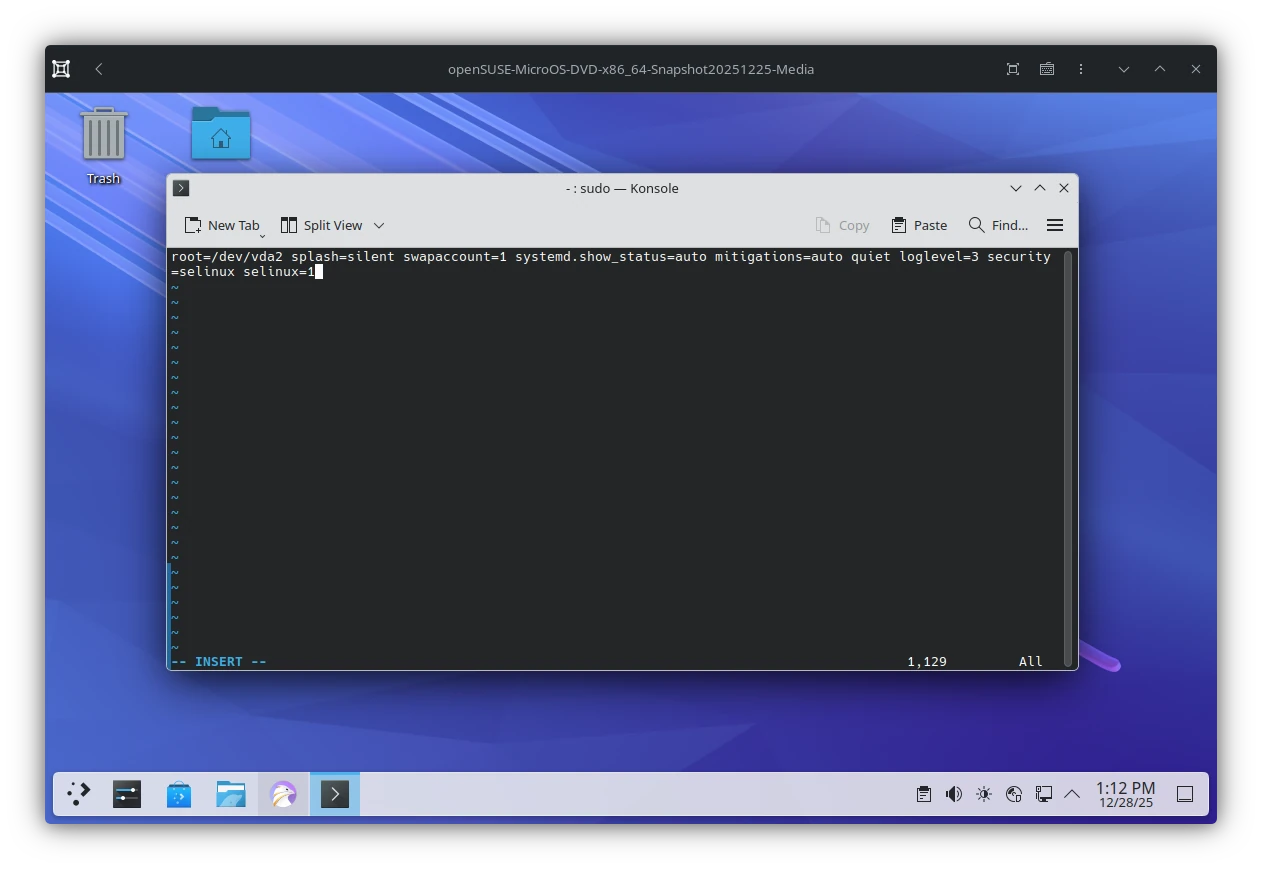
sudo vim /etc/kernel/cmdline
Press i to enter Insert mode
- Navigate to
systemd.show_status=1and change it tosystemd.show_status=auto. - Navigate behind
quietand addloglevel=3. Make sure quit and loglevel are separated by a space. - Press ESC :x to save the file
- Run
sudo transactional-update initrd
Hide boot loader
In case you do not want to see the bootloader and wait for 5 seconds until the system boots you can hide this interface so it only comes up if required (pressing any arrow key or space while booting).
Open Konsole and enter:
sudo vim /boot/efi/loader/loader.conf- Press i to enter Insert mode
- Set
timeout 8totimeout 0 - Press ESC :x
The boot menu should disappear right away on the next reboot.
FAQ
Why does Kalpa not have a dedicated install media?
This is because KDE Plasma does not have a first boot / setup assistant for user creation as Gnome does. This is why the old YaST based openSUSE installer is still used. KDE Plasma was planing on adding KDE Initial System Setup (KISS) for Plasma 6.5.0 but it did not made it into the the actual release.
See: https://blogs.kde.org/2025/08/23/this-week-in-plasma-kde-initial-system-setup/
As soon as a future release of KDE Plasma has a working Initial System Setup Kalpa will also be separated from the MicroOS installer.
Why do we have to install Kalpa twice?
This is related to the previous question. In the first step we install MicroOS with KDE Desktop. But this is still MicroOS (hence the branding you may have noticed during the first boot) but not the actual Kalpa. Since there is no dedicated Kalpa Installer we have to install and tweak our installation for it to become the real thing.