Remote Tracking
Facetracker can be run on a different device than the one your VTubing software is running on, for example, if your main PC should not have to handle the tracking calculations on top of everything else. To make this work, a few settings need to be configured.
Server Settings
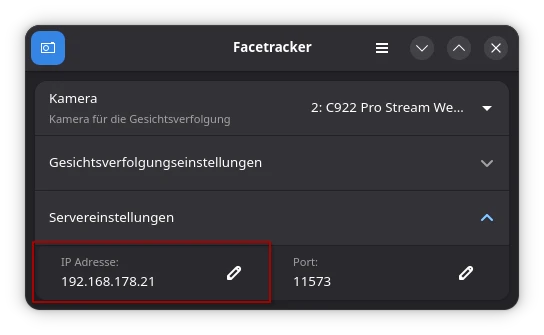
In the server settings under IP Address, enter the IP address of the computer running your VTubing software, as Facetracker actively sends its tracking data to that device. By default, Facetracker sends data to the local device itself (127.0.0.1, also known as the "loopback address", or 0.0.0.0), so that no one from outside can access this data. By entering an external IP address, you tell Facetracker where to send the data within your network.
Finding Your IP Address
An IP address (short for Internet Protocol) is a unique address by which a device can be reached within a network. You need the so-called local IPv4 address of the computer running your VTubing software. On home networks, this typically begins with 192.168. or 10..
Linux
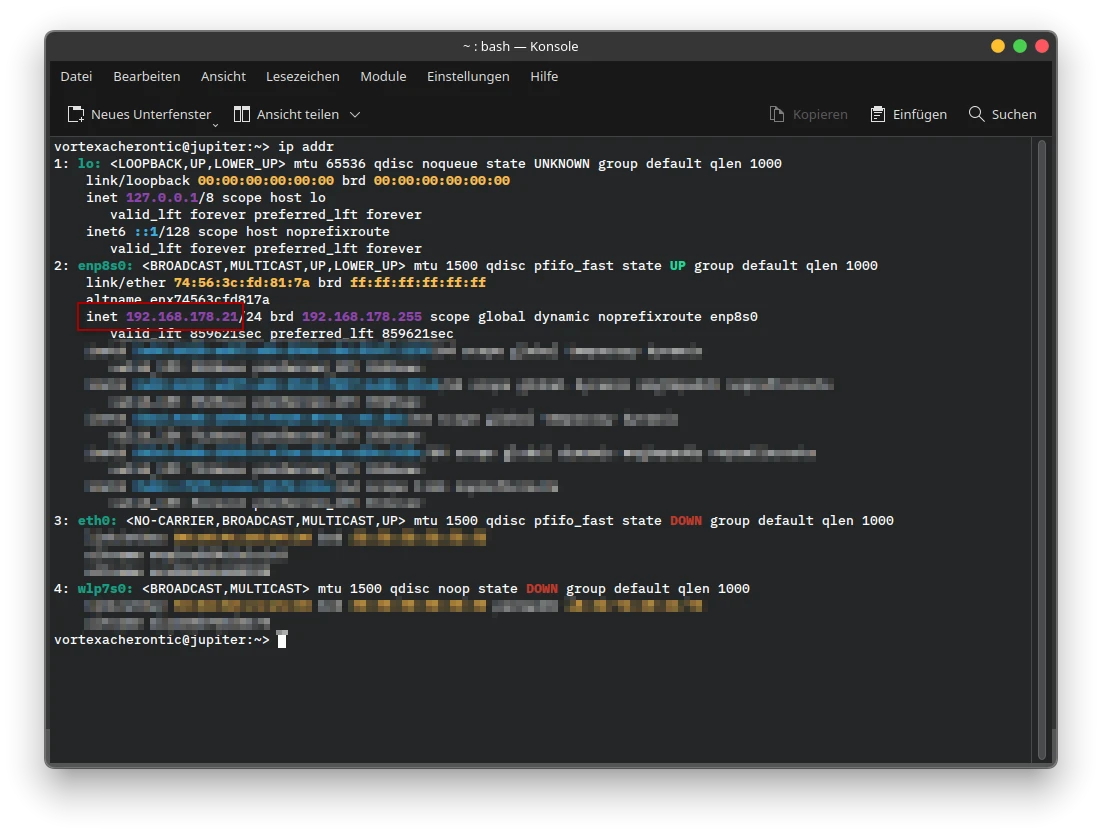
- Open the Terminal (the text-based command interface of your operating system).
- Enter
ip addr.- On older Linux distributions, you may need to enter
ifconfiginstead.
- On older Linux distributions, you may need to enter
- Look for the
inetentry and enter the corresponding four numeric blocks (e.g.192.168.178.21) into Facetracker.
Windows
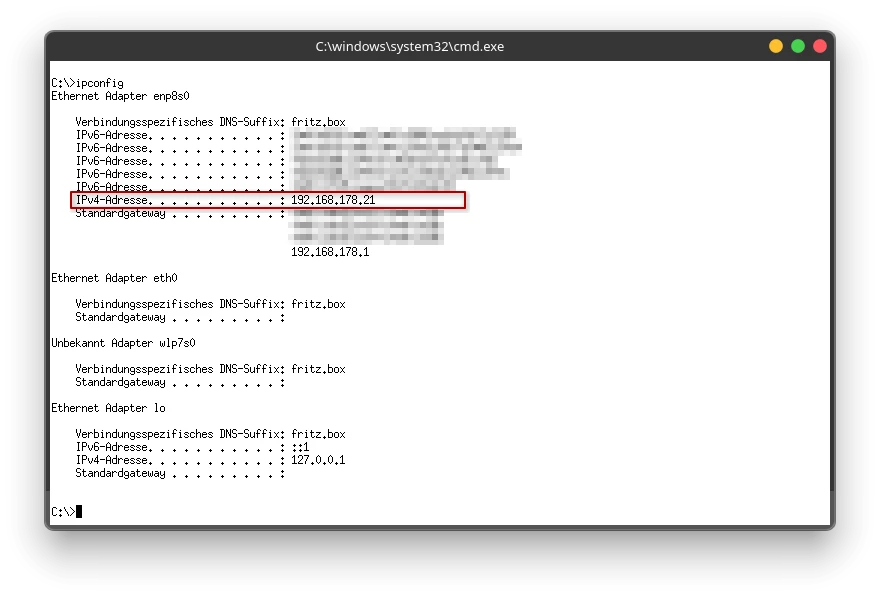
- Press the keyboard shortcut Windows + R to open the "Run" dialog.
- Enter
cmd.exeand confirm with Enter to open the Command Prompt. - Type
ipconfigand press Enter. - Look for the IPv4 Address entry and enter the corresponding four numeric blocks into Facetracker.
VTubing Software
Your VTubing software needs to be configured to receive tracking data on the interface 0.0.0.0. The address 0.0.0.0 means that the application listens on all available network interfaces simultaneously — that is, both on connections from the local device and from the network. For instructions on how to configure this for each application, see here: